Thanks for purchasing the Feltest SpeedController for use with the Feltest AirSpeed Sensor (anemometer) and TrueSpeed sensor (tachometer).
From time to time, Feltest releases a new software update for the SpeedController. The latest version, 2.0.5, will add three new languages to the SpeedController operating system (Spanish, Chinese and Japanese), as well as updating necessary software security certificates.
This blogpost describes the following tasks.
Connecting the device to the internet;
Setting the date and time (necessary to allow the software update); and
How to install the software update
Keeping your Feltest SpeedController connected and up to date ensures you always have access to the latest features, security improvements, and the correct timestamps on your measurement data. The process is straightforward and only takes a few minutes.
The following instructions are based on the Feltest SpeedController User Manual (Version 2022/2) supplied with the SpeedController unit or available to download here: https://www.feltest.com/en/manuals/speedcontroller.
Why Connect Your SpeedController?
The SpeedController includes a built-in web interface that allows you to:
Configure device settings
Download measurement data
Manage your measurement database
Receive software updates
Although an internet connection is not required for normal measurements or accessing the web interface, it is required to download software updates.
Step 1: Connect the SpeedController to Your Network
What you'll need
Before you begin, make sure you have:
Your SpeedController
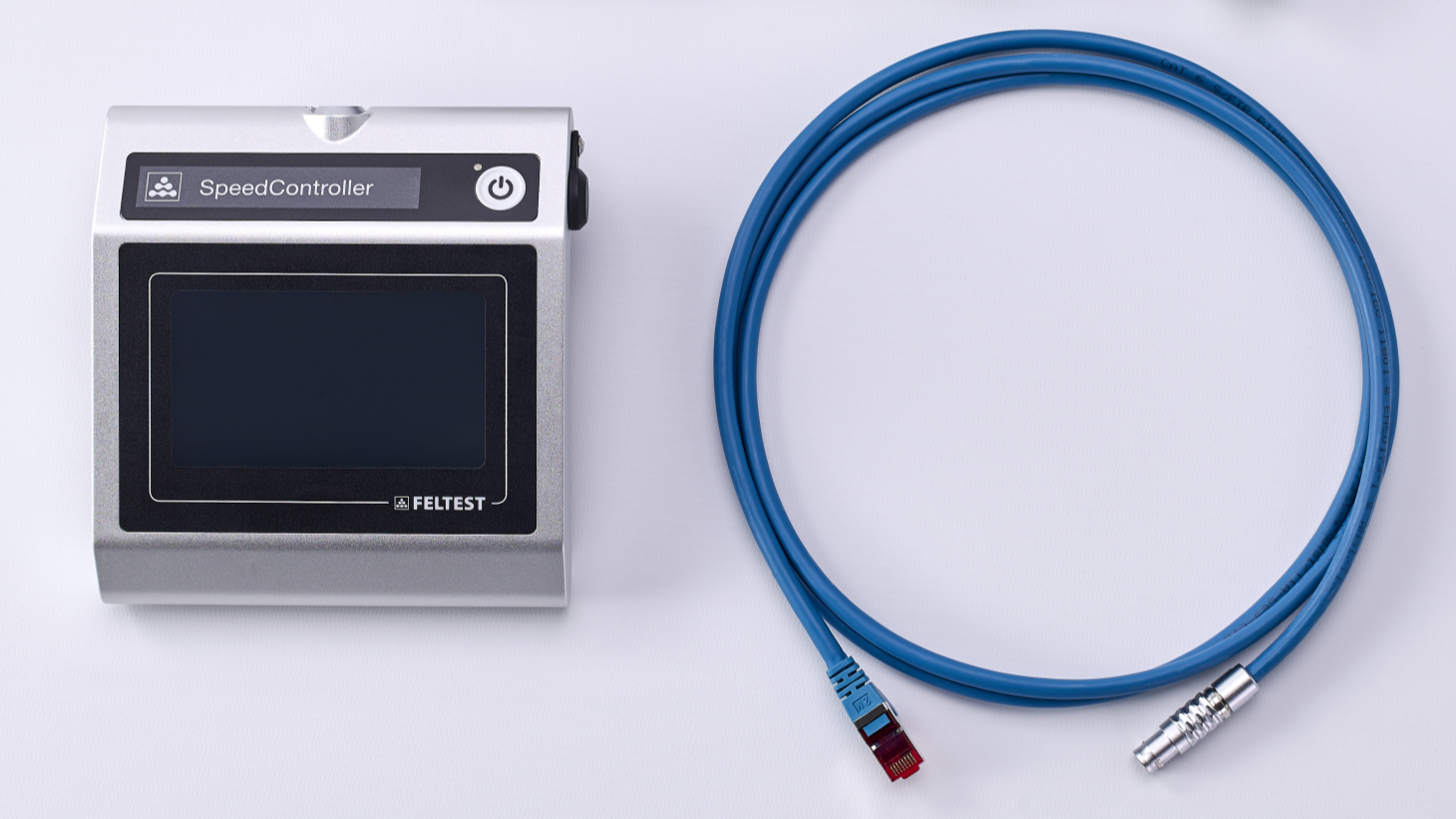
The supplied blue Ethernet adapter cable
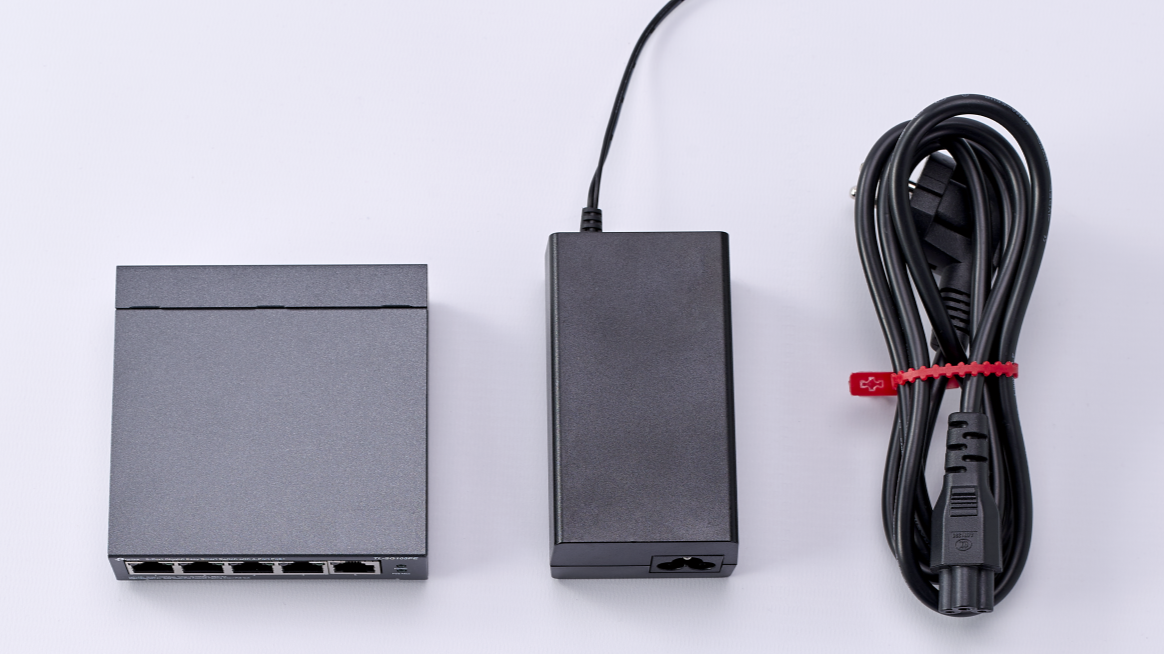
The Feltest Connect & Charge PoE+ switch (or another IEEE 802.3at PoE+ network switch)
A network connection with internet access
The SpeedController uses Power over Ethernet Plus (PoE+), meaning a single cable provides both network communication and battery charging.
Note that the connection, and software update, cannot be done through a Wifi connection.
Connect the Connect & Charge Switch
If your network does not already provide PoE+, use the supplied Connect & Charge switch.
1. Place the Connect & Charge switch near your computer.
2. Connect the switch to AC power.
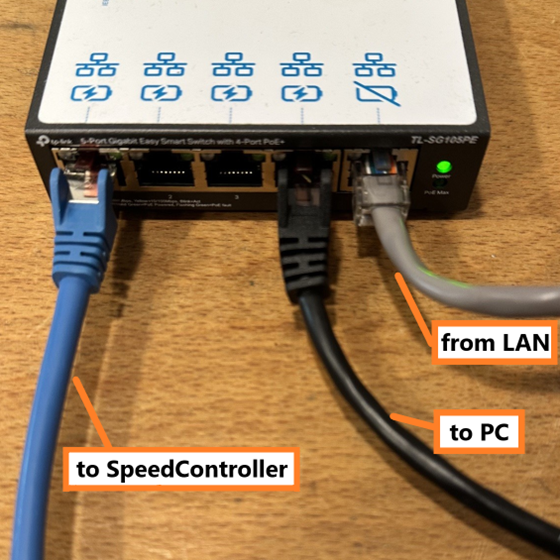
3. Disconnect the RJ45 ethernet connector (LAN cable) from your PC and push it into the righthand side port of the Connect & Charge switch, the gray cable in the picture above
4. Next, use the Feltest-supplied short, black standard network cable to connect the Connect & Charge switch with your PC again.
5. Use the blue cable to connect the SpeedController to the switch. Once connected, the SpeedController will power on automatically.
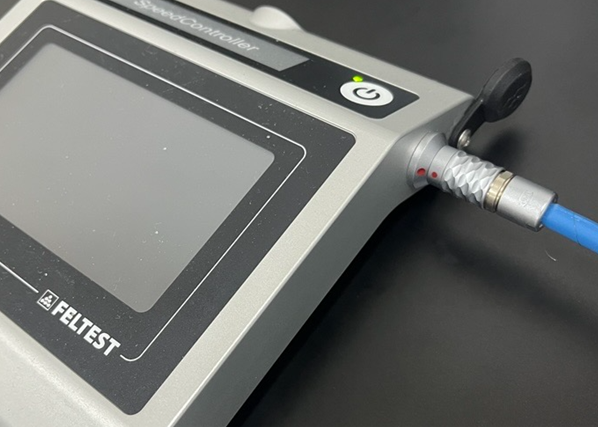
Establish Communication
Once everything is connected:
1. Confirm power is ON.
2. If your network has DHCP enabled, the SpeedController automatically receives an IP address.
3. On the SpeedController, navigate to: Settings → Network and note the displayed IP address.
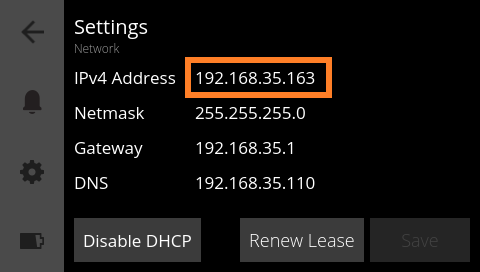
4. Open Chrome, Microsoft Edge, or Firefox on your computer.
5. Enter the displayed IP address into your browser's address bar.
The SpeedController web interface opens immediately.
What if DHCP isn't available?
Some industrial networks disable DHCP.
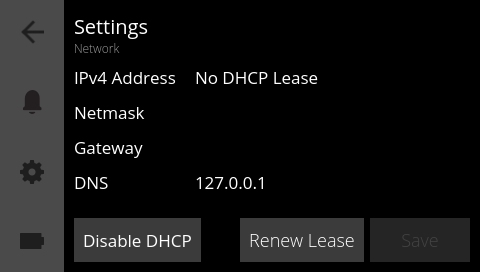
In that case:
Disable DHCP on the SpeedController
Enter the network settings manually. You may need the assistance of your company’s IT department
Configure matching IP settings on your computer
The user manual provides a complete step-by-step guide in Appendix A. Note that with this manual configuration method, the SpeedController can communicate with your PC but will not have internet access for software updates.
Step 2: Set the Correct Date
When set with a wrong date, your device will not detect new updates. Setting the correct date ensures the update proceeds correctly. Accurate timestamps also make measurement history easier to manage and compare.
Open the SpeedController web interface and select:
Settings
Under Date and Time, please manually configure the correct Time Zone and Date, and Save the new settings.
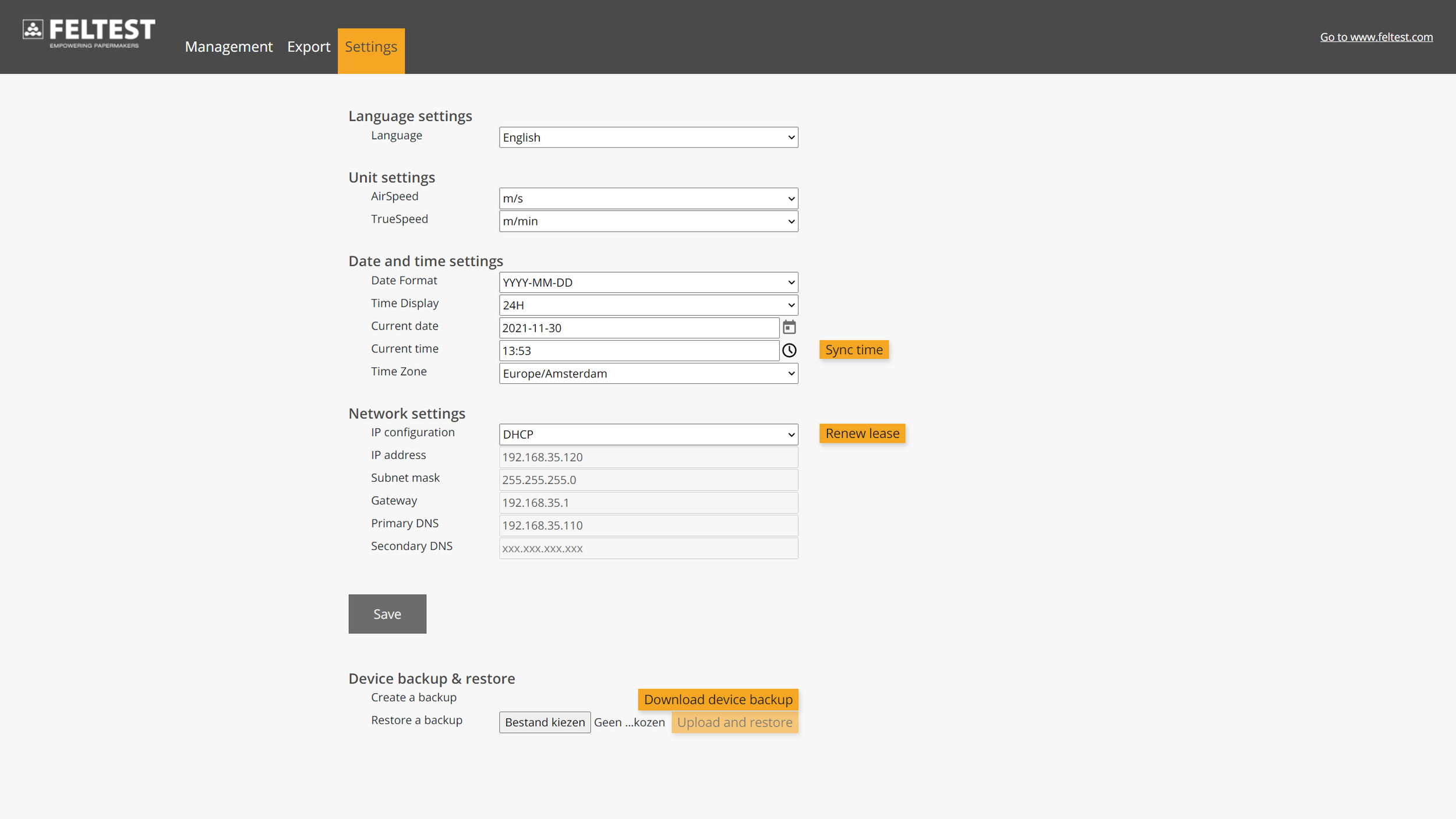
Available date formats:
MM/DD/YYYY
DD/MM/YYYY
YYYY/MM/DD
Time display
12-hour
24-hour
Please note that the Sync Time button, to copy the current time from your computer, currently doesn't work on every computer. This will be resolved in a future update.
Step 3: Install Software Updates
Feltest periodically releases software updates that may include:
New features
Performance improvements
Bug fixes
Additional language support
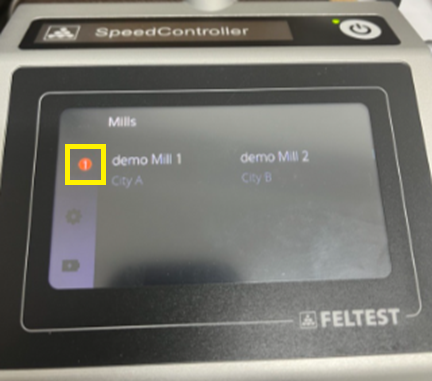
The SpeedController automatically checks for updates whenever it is connected to an ethernet network with internet access. When there is an update ready, there will be a ① displayed next to the Notifications icon.
Check for Updates Manually
You can also start the update process yourself.
On the SpeedController, navigate to: Settings → Check for Update
If an update is available:
The SpeedController notifies you.
Choose whether to install immediately or postpone the installation.
Follow the on-screen prompts to complete the update.
The software update may take between 2 minutes to 20 minutes or longer, depending on the available bandwidth and quality of the internet connection.
In the 2.0.5 software update, the most visible change you will experience as the operator of the SpeedController, is the number of languages available to operate the unit. In addition to English, it is now also available in Spanish, Chinese and Japanese languages.
Tips for Reliable Connectivity
For the best experience:
Use the supplied blue Ethernet adapter cable.
Connect to a PoE+ (IEEE 802.3at Type 2 Mode A) network whenever possible.
Verify that DHCP is enabled unless your IT department requires manual network settings.
Connect device to the internet periodically so it can check for new software releases automatically.
Keep Your SpeedController Ready for Every Measurement
Connecting your SpeedController to your network does more than enable software updates—it also gives you access to the device's powerful web interface for configuration, data management, and backups. Taking a few minutes to set the correct date and time and install the latest software ensures your measurement records remain accurate and your instrument continues to perform at its best.